Violations & Fix Plans
The app's built-in help for this screen, as shipped in quodeq 1.13.1. Edit this page on GitHub
The Violations tab is where you triage findings, read the evidence, and plan fixes. Active and dismissed findings live in their own sub-tabs.
Severity levels
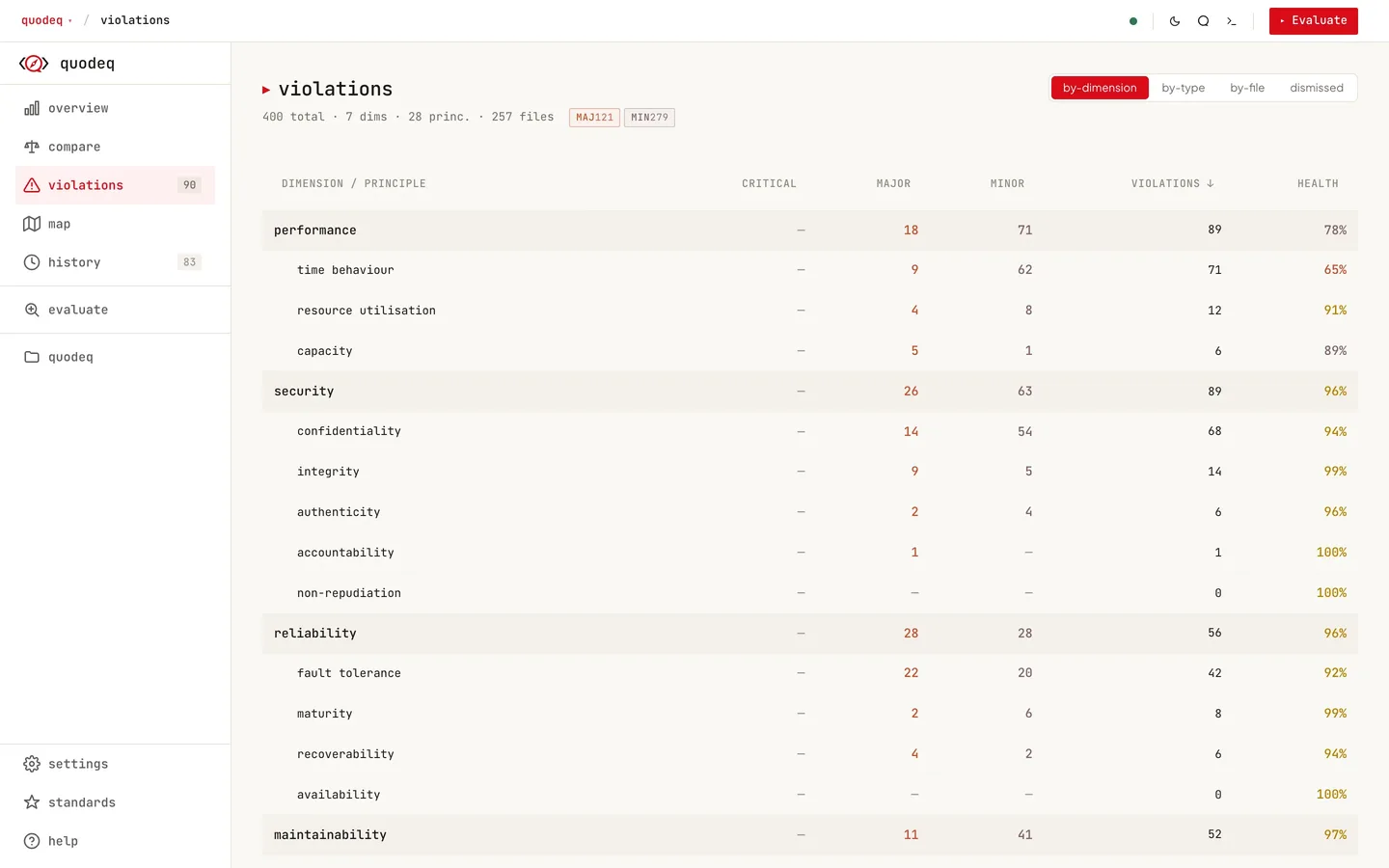
- CRITICAL an immediate security or reliability risk.
- MAJOR a significant quality issue.
- MINOR an improvement opportunity.
- COMPLIANCE not a violation: code that follows the standard correctly. Lifts the score.
Each finding includes a file and line, a short reason, the code, and a CWE classification. Compliant findings cite the CWE the code is correctly defending against.
A downgraded from critical tag means the provenance gate stepped in: the finding named no reachable external input source, so it was de-escalated to major.
A capped from major tag is the scope gate: your declared trust model puts the finding's premise out of scope, for example remote reachability on a loopback-only service, so the severity is capped. See Trust model and suppression rules below.
CRITICAL    src/db.py:15        SQL injection via string concatenation     CWE-89
            query = f"SELECT * FROM users WHERE id = {user_id}"
MAJOR       src/auth.py:42      Hardcoded credentials in source code       CWE-798
            credentials = {"user": "admin", "pass": "secret123"}
MINOR       src/utils.py:23     Bare except clause hides errors            CWE-396
            except: pass
COMPLIANT   src/api.py:88       Parameterized query prevents injection     CWE-89
            cursor.execute("SELECT * FROM users WHERE id = ?", (user_id,))
Four sub-tabs, one dataset
Use the pills at the top of the tab:
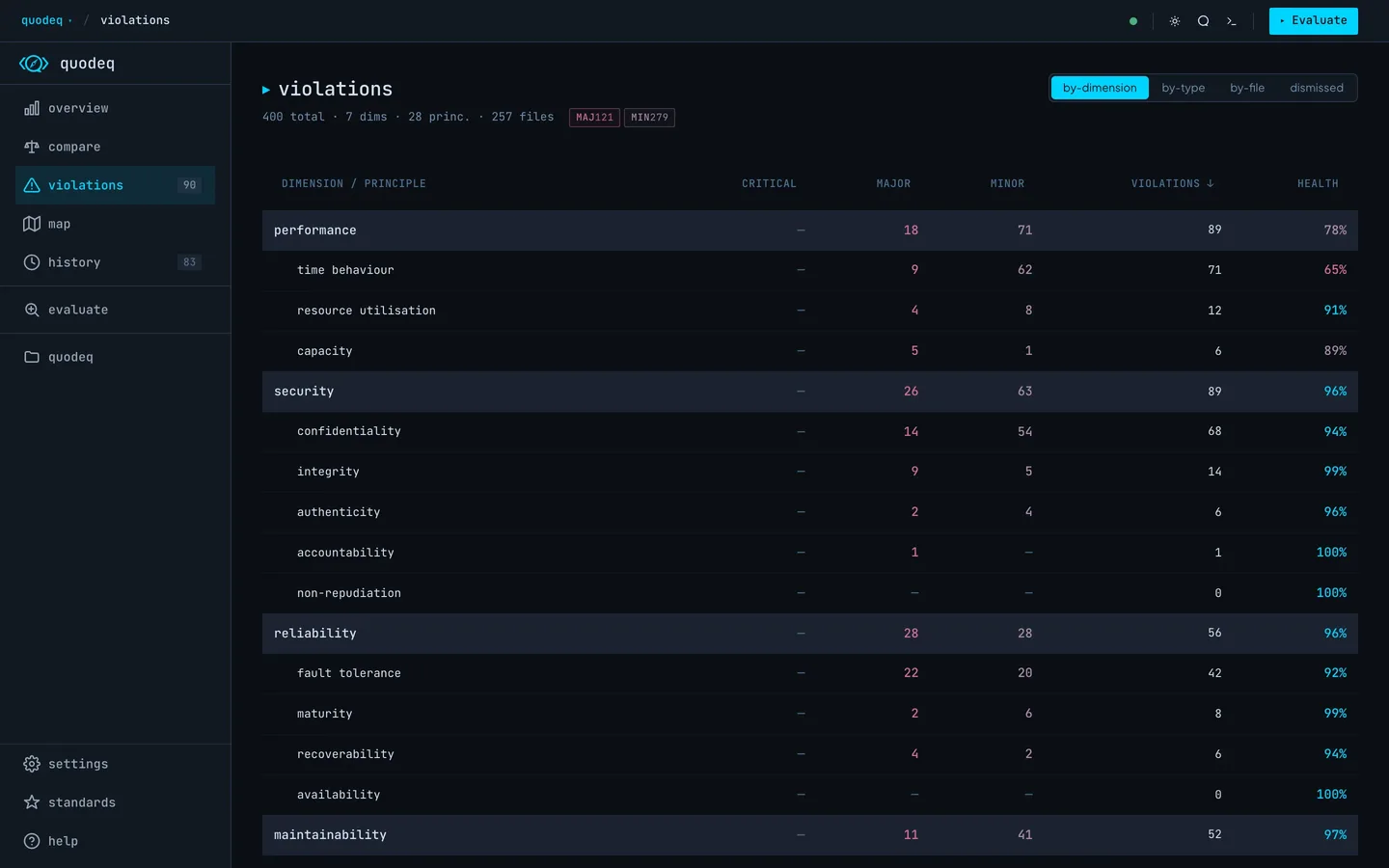
- by-dimension a table of dimensions with their principles indented below, showing critical, major, and minor counts, total violations, and health per row. Click a column header to sort.
- by-type one row per requirement code, grouped by dimension and principle, with the count in the baseline run, the count now, the change, and a closed badge when a type that had findings has none. Click a row to open its findings. The row menu can dismiss every finding of the type in the project or in one principle.
- by-file the same findings arranged as your directory tree, with a breadcrumb you can drill into. Useful for tracking down a single hot spot.
- dismissed everything you dismissed, with its reason, ready to restore or delete for good.
Drilling in
| Click a dimension | Open the Explorer with all principles, scores, and findings. |
| Click a principle | Open the principle detail with violations grouped by severity and a compliance list. |
| Click a file | Open the file detail with every finding (active and compliance) for that file. |
| Click a finding | Open the leaf finding card with breadcrumb context. |
In the file detail, findings the agents flagged as likely false positives sit in a collapsed Low confidence group, out of the way of triage. Expand it to review them.
Fix plans
From any violation, the Fix plan button opens a side-pane with a structured remediation packet: file path, line number, code context, the violated principle, and concrete guidance. Copy it into your AI agent or IDE; it carries everything the model needs to apply the fix.
Verified findings
When the assistant verifies a finding (see Assistant), the row gets a checkmark chip. Hover it for the verification note; click it to remove the badge.
Dismissing a finding
If a finding is a false positive or an accepted trade-off, dismiss it from the violation detail. You will be asked for a reason. Dismissed findings:
- move to the dismissed sub-tab,
- are excluded from scoring (the dimension score updates immediately),
- are excluded from future evaluations for the same principle and file,
- can be restored individually or in bulk via Restore all, or removed for good with Delete and Delete all.
Dismissing a whole type
The by-type row menu offers Dismiss all N in this project and Dismiss all N in
Trust model and suppression rules
Two files refine how findings are judged, beyond one-off dismissals:
- Trust model
.quodeq/project-profile.jsonin the repo declares what the service is exposed to, e.g.{"version": 1, "multiTenant": false, "networkExposure": "loopback", "deploymentTopology": "single-host"}. Detection can fill inmultiTenant, but neither network exposure nor deployment topology is ever guessed: a loopback deployment and a hosted one, and a single-host deployment and a scaled-out one, are byte-identical on disk, so only a human declaration can relax a remote-reachability or a scalability finding. Commit it and the whole team scores against the same assumptions. - Suppression rules
suppression_rules.jsonin the project's data directory (under~/.quodeq/evaluations, next to its runs) holds pattern rules: a requirement glob, a file glob, and a mandatory reason. A rule survives the code moving or being renamed, which a plain dismissal does not. There is no editor for it yet; it is a hand-written JSON file, and malformed entries are skipped rather than suppressing everything.
The run stats show how many findings the rules removed as suppressed.
Dismissals are durable
Dismissals persist across runs. They are tied to the finding's principle and file, so renaming or moving the file may bring the finding back. That is intentional. When you want a decision that follows the code around, use a suppression rule instead.