Custom Standards
The app's built-in help for this screen, as shipped in quodeq 1.13.1. Edit this page on GitHub
The Standards tab is where you decide what quality means for your project. Browse, edit, import, and create the rules quodeq evaluates against.
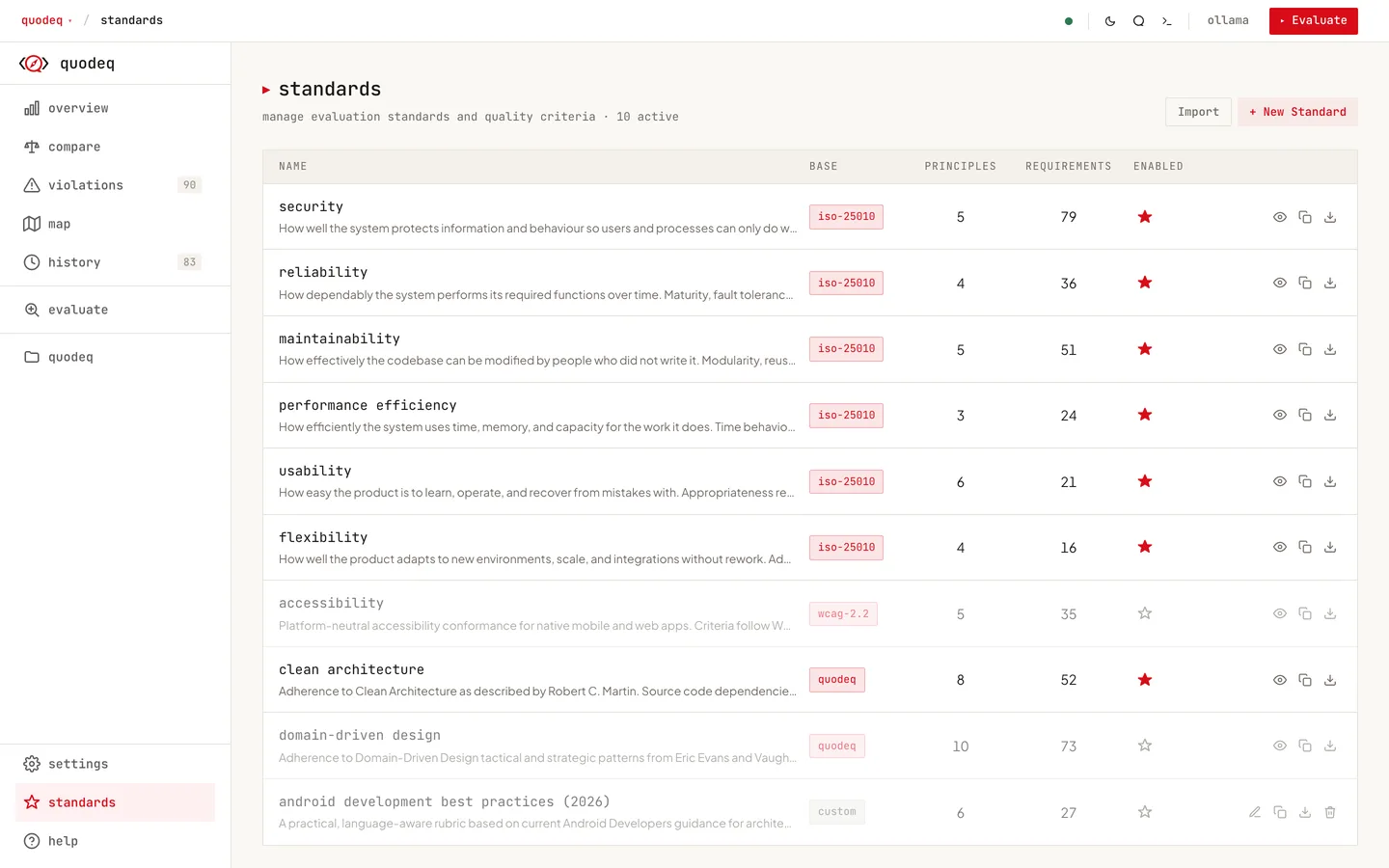
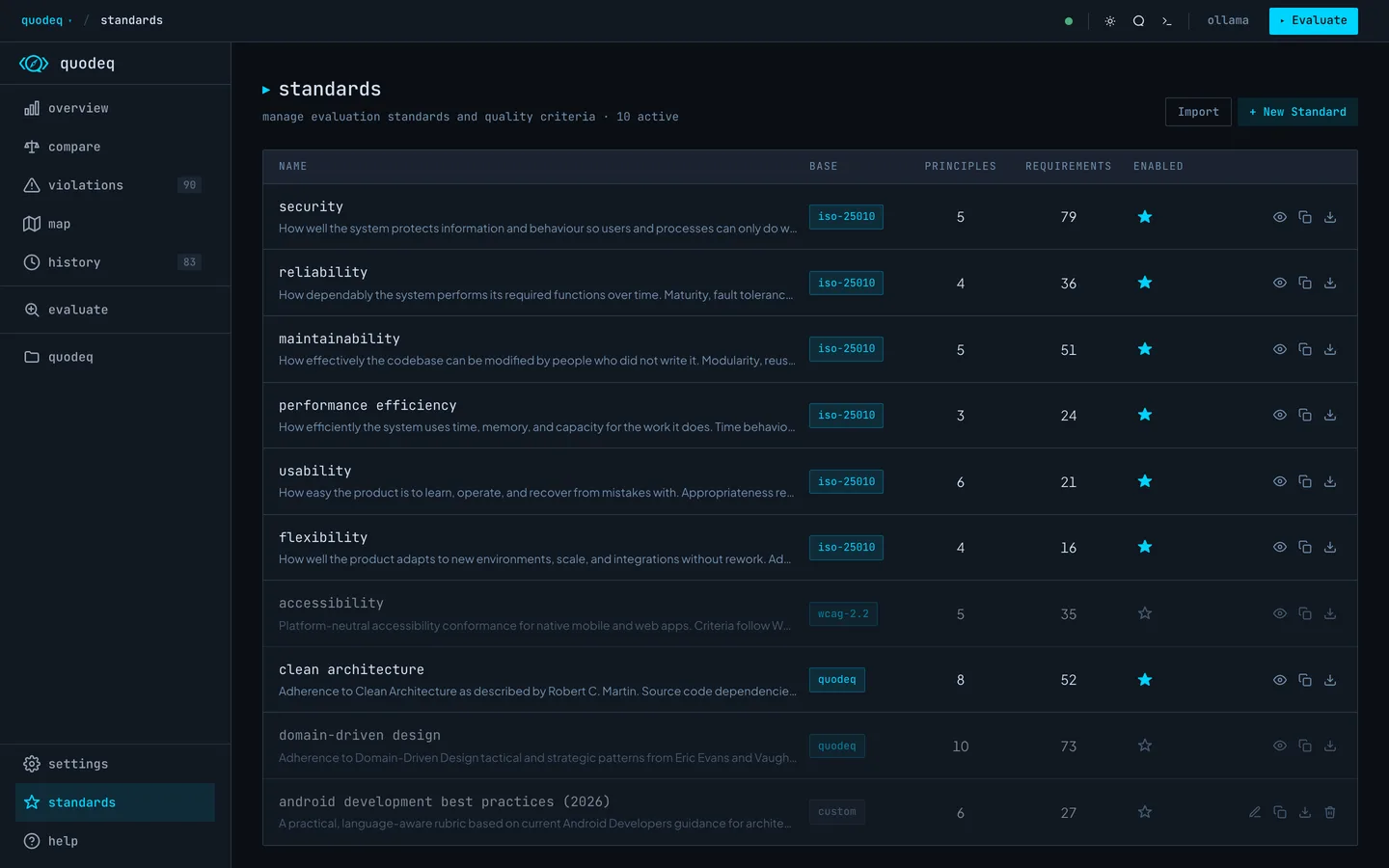
Built-in standards
quodeq ships with managed standards for the six ISO 25010 dimensions plus Clean Architecture, DDD Design and WCAG 2.2 Accessibility. Their structure is read-only and marked as Managed, but their numeric thresholds are editable (see below). To turn one off, hide it with the visibility toggle.
Customizing thresholds
Many requirements carry a number: max function lines, max parameters, and so on. You can change these per project without cloning the standard. Select the requirement and edit the value in its Thresholds section, which shows the default and the allowed range. Out-of-range values are rejected, and Reset to default removes the override. Custom standards can declare thresholds too.
The tree marks customized requirements with a dot and shows the value in effect in each label. Standards with overrides get an N thresholds customized badge. Evaluations judge against your values, not the shipped ones.
Overrides are saved to .quodeq/standards-overrides.json in the project root. Commit the file and the whole team scans with the same numbers. If it is missing or malformed, the defaults apply; a scan never fails because of it.
Changing a threshold rewrites the rule for that dimension, so previously analyzed files show as pending until the next scan re-evaluates them. Restoring the previous value brings the earlier results back without a re-scan. Other dimensions are unaffected.
Not the grade thresholds
The boundaries in the Grade Formula editor decide how scores map to letter grades. These thresholds decide when code violates a requirement.
Creating your own
- Click New standard.
- Name it and pick the dimension it belongs to.
- Add principles (categories) and inside each, requirements (the specific checks).
- Set a severity per requirement:
critical,major, orminor. - Save. The next evaluation picks it up automatically.
Custom standards are fully editable and can be duplicated, exported, or deleted at any time.
Importing
Click Import to load a JSON file you wrote yourself or got from elsewhere. quodeq validates the shape and tells you what is wrong if it does not parse.
Standard schema
{
  "id": "react-best-practices",
  "name": "React Best Practices",
  "dimension": "maintainability",
  "version": "1.0",
  "principles": [
    {
      "id": "P-REACT-A11Y",
      "name": "Accessibility",
      "description": "Components must be accessible by default.",
      "requirements": [
        {
          "id": "R-A11Y-1",
          "rule": "Interactive elements expose semantic roles.",
          "severity": "major"
        }
      ]
    }
  ]
}
- id unique slug, used as the filename.
- dimension which quality dimension this standard rolls up into.
- principles categories of evaluation. Each principle becomes a card on the Explorer page.
- requirements specific checks. Each one is what the AI cites when it reports a finding.
Generating standards with AI
Any chat AI (Claude, ChatGPT, Gemini) can write a standard for you. Paste the schema above, describe what you want evaluated, and ask for a JSON file. Save the result and import it. A starter prompt:
Generate a quodeq standard JSON file for evaluating React
component best practices. Cover accessibility, performance,
state management, and error boundaries. Use this schema:
{ ...paste schema above... }