Settings
The app's built-in help for this screen, as shipped in quodeq 1.13.1. Edit this page on GitHub
Provider configuration, model overrides, server status, and appearance live in Settings. Most of it is set once and forgotten.
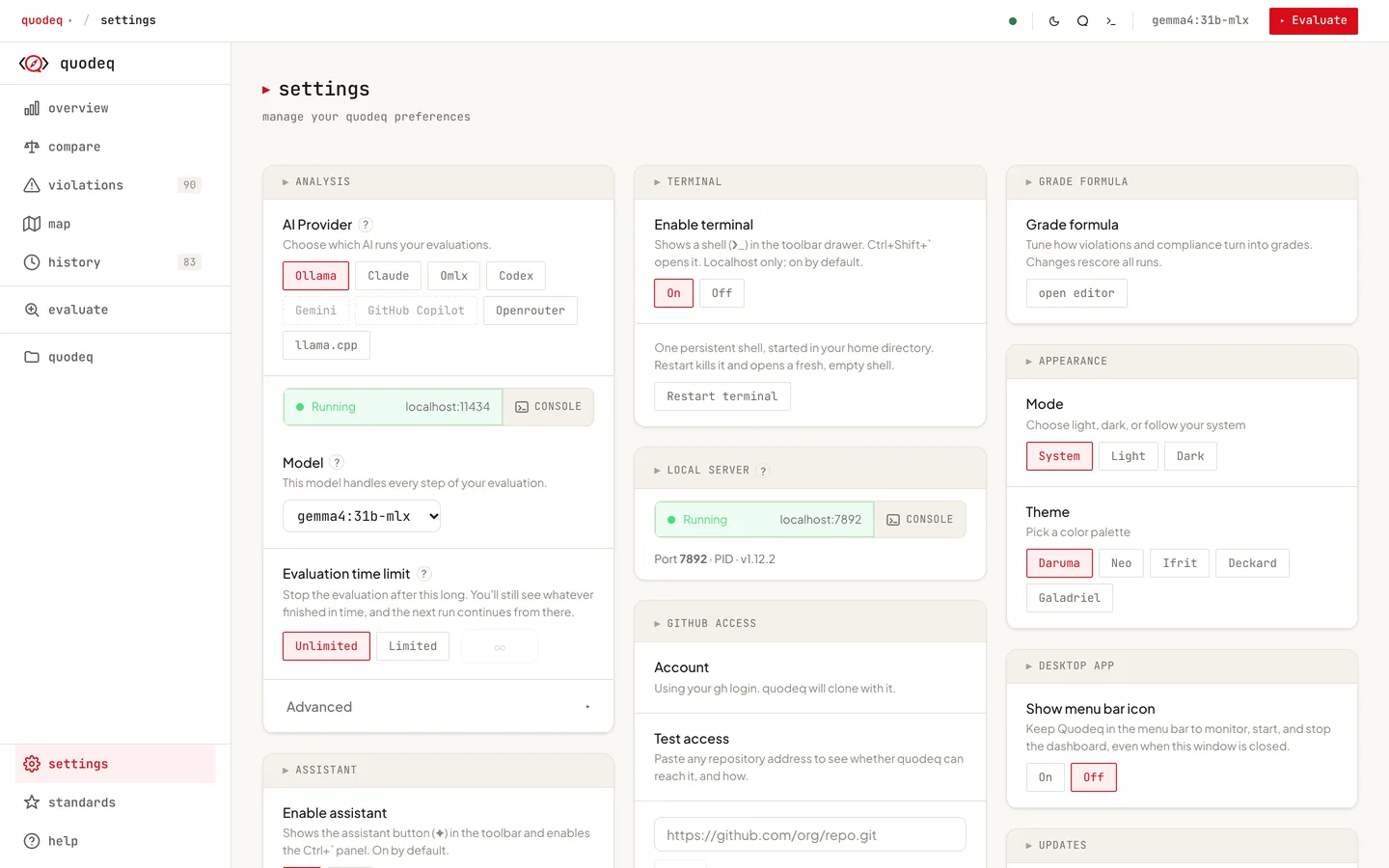
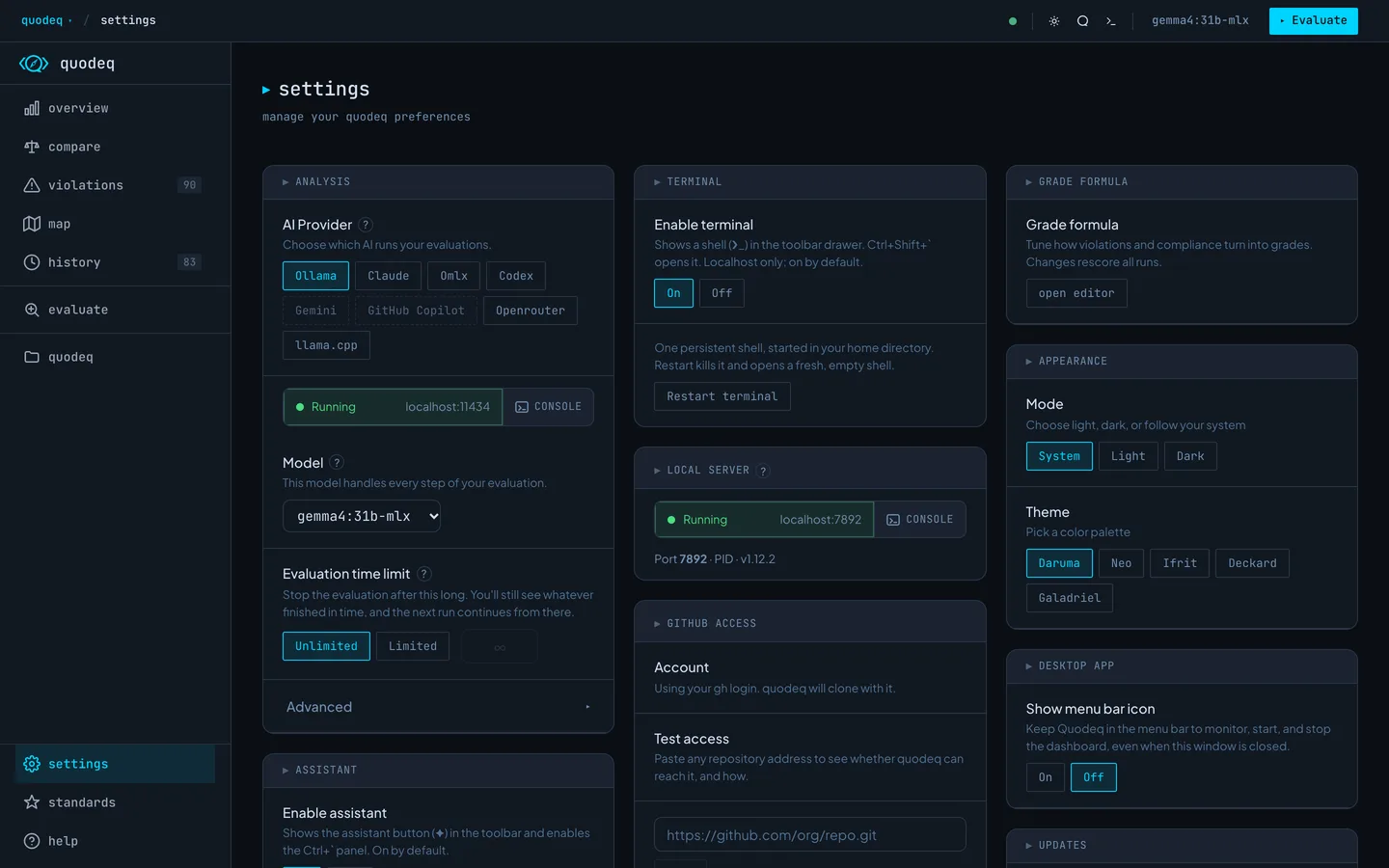
Provider tabs
- Cloud hosted APIs (OpenRouter or a custom OpenAI-compatible endpoint). API key, base URL, model id, and a Test connection button.
- CLI local AI CLIs you have authenticated (Claude Code, Codex, Gemini). Pick the binary, then a model id.
- Ollama models on your local Ollama server. quodeq lists whatever you have pulled.
- Omlx an MLX-native local server. The tab appears only on Apple Silicon Macs.
- llama.cpp a local llama-server instance. Shows the GGUF currently loaded.
Each tab also exposes sub-agent count and a time budget default. Start an evaluation and you can override these per-run.
Model overrides per tier
Power tiers (Fast / Balanced / Thorough) ship with sensible defaults. You can pin a different model to each tier if you want a small model for routine runs and a large one for audits. Leave a tier blank to inherit the main model.
Server
Shows the current dashboard server: port, version, and status. Live log streams (server, Ollama, evaluation) are wired into the side-pane log viewer. Open it from the bottom-bar log buttons to tail what is happening.
Evaluations repository
Paste a git URL here to publish evaluations to a git repository, yours across machines or shared with your team: you publish finished runs from the projects list, and anyone connected sees them in theirs. The Shared Repository help section walks through connect, publish, pull, and disconnect.
Appearance
Light or dark mode plus a theme family selector. Themes change accent colors and surface tones; layout stays the same.
Updates
quodeq checks PyPI and GitHub once a day for a newer version. When one exists, a banner appears at the top of the dashboard and the Updates section shows the version jump plus the exact upgrade command for your install (pipx, uv, or Homebrew). Dismissing the banner silences that version; the next release brings it back.
- check now asks immediately, ignoring the daily throttle.
- Automatic checks turns the daily background check on or off.
- Set
QUODEQ_NO_UPDATE_NOTIFIER=1to disable automatic checks and CLI notices entirely.
After an update
The first start after an update can invalidate quodeq's score caches. The dashboard opens right away and rebuilds them in the background, newest projects first: project cards show a pulsing placeholder while their grade recomputes, and a Refreshing scores progress bar on the loading and Overview screens counts through the projects being prepared. Anything you open jumps the queue. If the very first request still times out, the screen offers Retry; retrying is safe and never duplicates work.
The same background rebuild runs whenever score caches need re-deriving for other reasons, for example after relocating a repository or clearing ~/.quodeq.
Assistant and terminal
Both are on by default. The Assistant section turns the chat drawer off or on and picks its provider and model; Enable terminal turns the embedded shell off or on. See the Assistant and Terminal help sections.
Onboarding
The onboarding section has one row, show welcome: it opens the welcome and the first-run steps again, even if you skipped them before. Nothing else changes; your projects and settings stay as they are. If you already have projects or a connected repository, the welcome adapts to say so, and showing it never marks onboarding as skipped.
Grade formula
The Grade formula section opens the formula editor, where severity weights, curve shape, grade boundaries, and dimension weights live. See the Grade Formula help section for the full tour.
About
Version info, links to docs and the repo, and the kill-switch environment variables you can set if you need to disable side features. Most users will not need this section.